Kamal Rails on AWS Series Part 1: Deploy Rails application on AWS
Kamal is a modern deployment tool for Rails applications, announced by DHH in February 2023 and featured in his RailsWorld Keynote. With Heroku having removed their free tier, Kamal has gained significant traction, particularly for those interested in “leaving the cloud”. Most importantly, Kamal is free and open source, developed by the team at Basecamp who created Rails.
Using Kamal requires you to provision your own server. Popular options include Digital Ocean, AWS, and Hetzner. In this article, we’ll use AWS, which is widely adopted and offers a free tier.
This is part of the Kamal Rails series. I’ll walk you through the basic steps of deploying a vanilla Rails application on AWS.
Pre-Requisites:
- Docker is installed on your local machine (ensure the version is compatible with your OS)
- A Docker account created on Docker Hub
- A Rails application using Rails 6.0 or later
If you don’t have a Rails application yet, you can create one using:
1
rails new kamal_demo -T -m https://raw.githubusercontent.com/joshio1/rails_application_template/main/application_template.rb
- An AWS account ready to create EC2 and Amazon RDS (managed database) instances
Steps:
1. Create an EC2 instance in AWS
- Log in to AWS
- Create a key pair using your public key for SSH access:
- Navigate to Key Pairs and click “Import”
- Name the key pair (e.g.,
test-laptop) - Copy your public key to the clipboard:
1
pbcopy < ~/.ssh/id_rsa.pub
- Paste the public key and click “Create”
- Launch an EC2 instance:
- Go to EC2 and click “Launch Instance”
- Select the free tier and choose Ubuntu as the operating system
- Keep the default configurations for the EC2 instance
- Select the key pair you created above in the SSH configuration
- This allows you to access the instance from your local machine
- Verify SSH access to the instance:
1
ssh ubuntu@<public_ip_address_of_the_ec2_instance>
2. Prepare Your Rails Application for Deployment
- Navigate to your Rails application’s root directory and verify you have a
Dockerfile.- Rails 7.1 and later include a Dockerfile by default
- For earlier versions, use the dockerfile-rails gem to generate the necessary files
A Dockerfile is required because Kamal uses Docker images for deployment.
- Ensure you have a health check route. Rails 7.1+ includes an
/uproute by default that indicates application health. - If you don’t have this route, add it to your
config/routes.rbfile:
get '/up', to: ->(env) { [204, {}, ['']] }
- With a Dockerfile and health check route in place, you’re ready to use Kamal.
3. Deploy with Kamal
- Install Kamal:
1
gem install kamal
This installs Kamal 2, the latest version (version depends on your Ruby version).
- Navigate to your Rails application and initialize Kamal:
1
2
cd kamal_demo
kamal init
This creates several files including config/deploy.yml, .kamal/hooks, and .kamal/secrets.
- Configure environment variables:
- Create a Docker Registry access token by logging into your Docker account and navigating to
Account Settings > Security > New Access Token - Obtain your
RAILS_MASTER_KEY, which decrypts your production credentials file (config/credentials/production.yml.enc)- If you don’t have a production credentials file, create one with:
EDITOR=vim rails credentials:edit --environment production
- If you don’t have a production credentials file, create one with:
- There are three ways to manage these secrets in
.kamal/secrets:- Create a
.envfile and load it withdirenv - Use
rails credentials:fetch kamal.registry_password(requires latest Rails) - Use a third-party tool like 1Password with
kamal secrets
- Create a
- For simplicity, we’ll use the first approach with a
.envfile - Use direnv to load environment variables from
.envinto your shell Your
.envfile should look like:1 2
KAMAL_REGISTRY_PASSWORD=<our_docker_access_token> RAILS_MASTER_KEY=<our_rails_production_master_key>
- Create a Docker Registry access token by logging into your Docker account and navigating to
- The
kamal initcommand also creates aconfig/deploy.ymlfile. This file contains the configuration needed to deploy your Rails application. Edit it to match the following:
1
2
3
4
5
6
7
8
9
10
11
12
13
14
15
16
service: kamal_demo
image: joshio1/kamal_demo
servers:
  - <ipv4_address_of_ec2_instance>
registry:
  username: joshio1
  password:
    - KAMAL_REGISTRY_PASSWORD
builder:
  arch: amd64
  secrets:
    - RAILS_MASTER_KEY
    - SECRET_KEY_BASE
env:
  secret:
    - RAILS_MASTER_KEY
- Key details about the
config/deploy.ymlfile:joshio1is your Docker username andkamal_demois your Rails application name- Kamal automatically references
KAMAL_REGISTRY_PASSWORDandRAILS_MASTER_KEYfrom your.envfile - Replace
<ipv4_address_of_ec2_instance>with your actual EC2 instance IP
- Set
force_ssl = falseinconfig/production.rbsince we haven’t configured SSL certificates yet. We’ll enable HTTPS in a later part of this series.
4. Install Docker on the EC2 Instance
- Kamal doesn’t automatically install Docker on the remote server when using a non-root user. Although the
ubuntuuser hassudoprivileges, you must install Docker manually. - SSH into the remote server and run the following commands:
1
2
3
4
sudo apt-get update
sudo apt-get install docker.io
sudo systemctl start docker
sudo systemctl enable docker
5. Deploy Your Application
After completing the configuration above, deploy your Rails application to the EC2 instance:
1
kamal setup
You should see output similar to:
1
2
3
4
5
6
7
8
9
10
11
12
13
14
15
16
17
18
19
20
21
22
23
-> kamal_demo git:(main) ✗ kamal setup
  INFO [ffc073f1] Running /usr/bin/env mkdir -p .kamal on 5.161.42.10
  INFO [ffc073f1] Finished in 3.630 seconds with exit status 0 (successful).
  Acquiring the deploy lock...
  ...
  Ensure Docker is installed...
  ...
  Push env files...
  ...
  Log into image registry...
  ...
  Build and push app image...
  ...
  ...
  ...
    INFO [57d640dd] Finished in 0.527 seconds with exit status 0 (successful).
    INFO Container is healthy!
  ...
  ...
    INFO [36025396] Finished in 1.358 seconds with exit status 0 (successful).
    Finished all in 288.2 seconds
    Releasing the deploy lock...
    Finished all in 301.2 seconds
- Once the container is healthy and all steps complete successfully, verify the deployment by visiting
<SERVER_IP>/upin your browser. You should see a green health check screen.
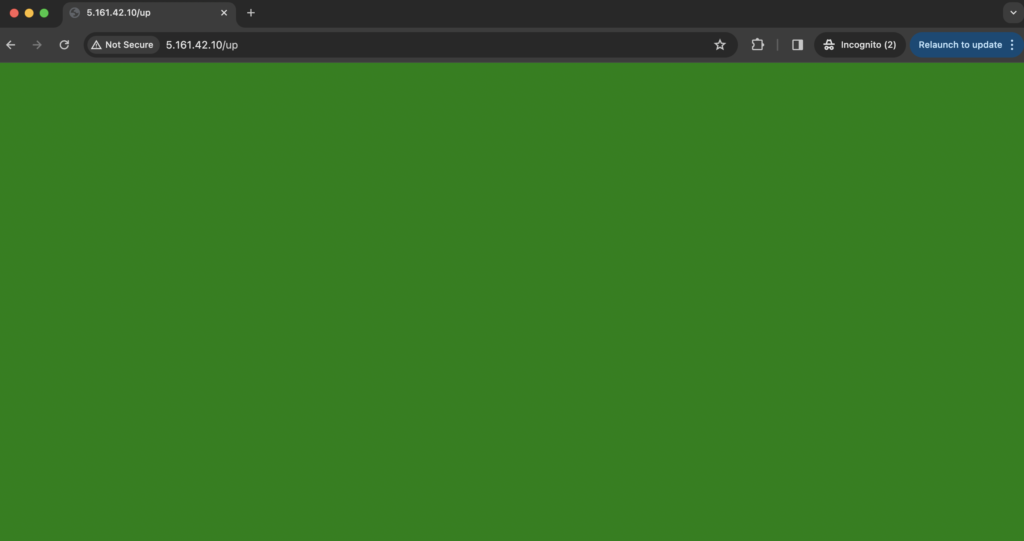
- If you encounter errors during
kamal setupor don’t see the green screen, refer to the Important Points section below.
Important Points
- If your initializers access Rails credentials, modify your Dockerfile to use
RAILS_MASTER_KEYwhen precompiling assets (Dockerfile version >= 1.4):1 2 3 4
RUN --mount=type=secret,id=RAILS_MASTER_KEY \ SECRET_KEY_BASE_DUMMY=1 \ RAILS_MASTER_KEY="$(cat /run/secrets/RAILS_MASTER_KEY)" \ ./bin/rails assets:precompile
- All changes must be committed to git before deploying—Kamal only picks up committed files
- Specify the Node version in your Dockerfile to avoid “definition not found” errors
- If your Rails application uses Postgres instead of SQLite, see the next article in this series
Next Part: Add AWS RDS to Your Rails Application
So far, we’ve deployed a basic Rails application with SQLite. In Part 2 of this AWS series, we’ll add AWS RDS as a managed database service.
Continue to Part 2: Add AWS RDS
NOTE:
- If this article is out of date, please don’t hesitate to contact me on Twitter from this page and I’ll be happy to update it.
- Listen to this podcast where DHH talks about Rails and Kamal.
- If you would like to search for specific terms or concepts or names in Ruby/Rails podcasts, check out rubypodcatcher.com